
Introduction
GT uses Kivuto OnTheHubs as a 3rd-party software distribution Webstore to provide free and discounted academic home/personal use software to the GT campus community. Product availability and pricing depend on your role at GT (student, faculty, staff).
Software distributed through the Kivuto OnTheHubs Webstore is licensed for use on personally owned devices and should never be installed on an GT-owned device. It is your responsibility to read and comply with all applicable license agreements for any software that you purchase, download, and/or install.
Instructions
- Visit: https://gatech.onthehubs.com
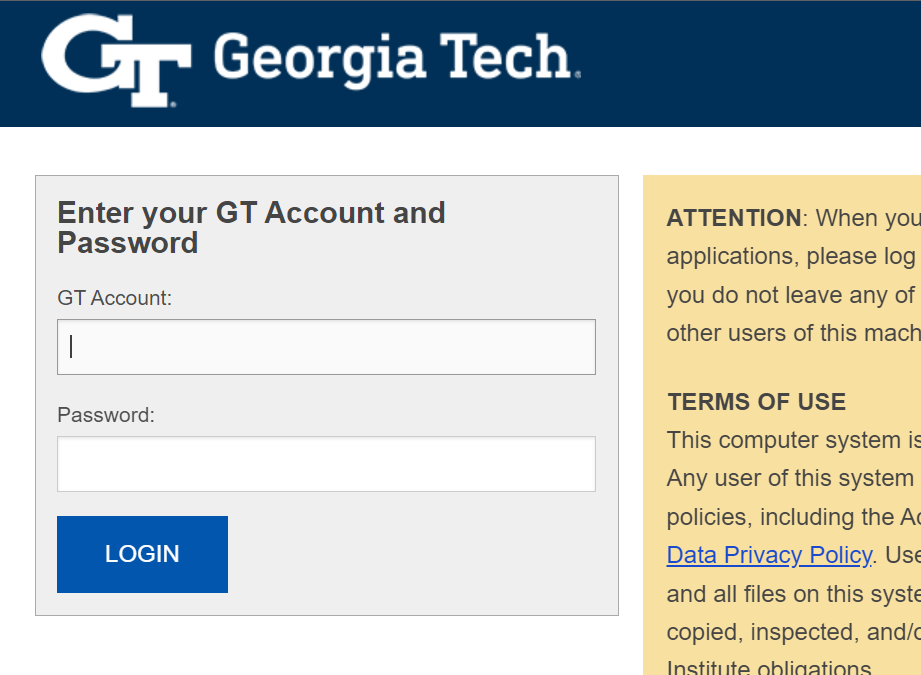
If you are not already signed in, the GT Account and Password Page will appear.
- If prompted, enter your GT Username and Password to log in.
You will get prompted for Duo Authentication.
Click yes to trust browser.
- After you log in, Kivuto's Home Page will reappear—this time with your Username displayed in the upper right-hand corner. You can find links to Help, Your Account/Orders, and Sign Out in the upper right-hand corner of the screen.
.png)
4. To search for a specific title, enter it in the Product Search bar or you can click on the specific software icon below. The software category available for faculty/staff/students is "GT Provided Software" and "Purchase IBM SPSS". Some software titles may have multiple versions available for download. Click on any software title to view all available versions of that title.
.png)
- When you click on a software title, the name and version will be displayed as gold header. To view detailed information about the software title (e.g. product description, system requirements, and eligibility), click on the Description, System Requirements, and Are you eligible tabs at the bottom of the page.
.png)
- If you are interested in getting the software title, click Add to Cart to add a software title to your shopping cart. (Note all software that you add to cart is "Free" except for the Student Adobe and SPSS for Personal Devices)
.png)
- After adding the software titles that you want, click on the Check Out button.
.png)
- Confirm that your order details are correct and click "I'm not a robot" to verify the images and click on "Continue" to Proceed with Order. After you click continue you will be presented with the Download and Instructions links for your software. Kivuto will also send a copy of your Order Receipt to your GT email address. Click on the Download button to start downloading your software.
.png)
- Click on the Download button to start downloading your software.
.png)
10. You can access your order history under Your Account/Orders, beneath your Username, in the top right of the screen. Your orders will be listed under the Orders & Downloads header.
Click View Details to see a detailed Order Summary screen.
.png)
11. The Order Details screen contains full details about your order, including download links, required product keys and activation codes. Click the Download button to view instructions for downloading and installing.
.png)